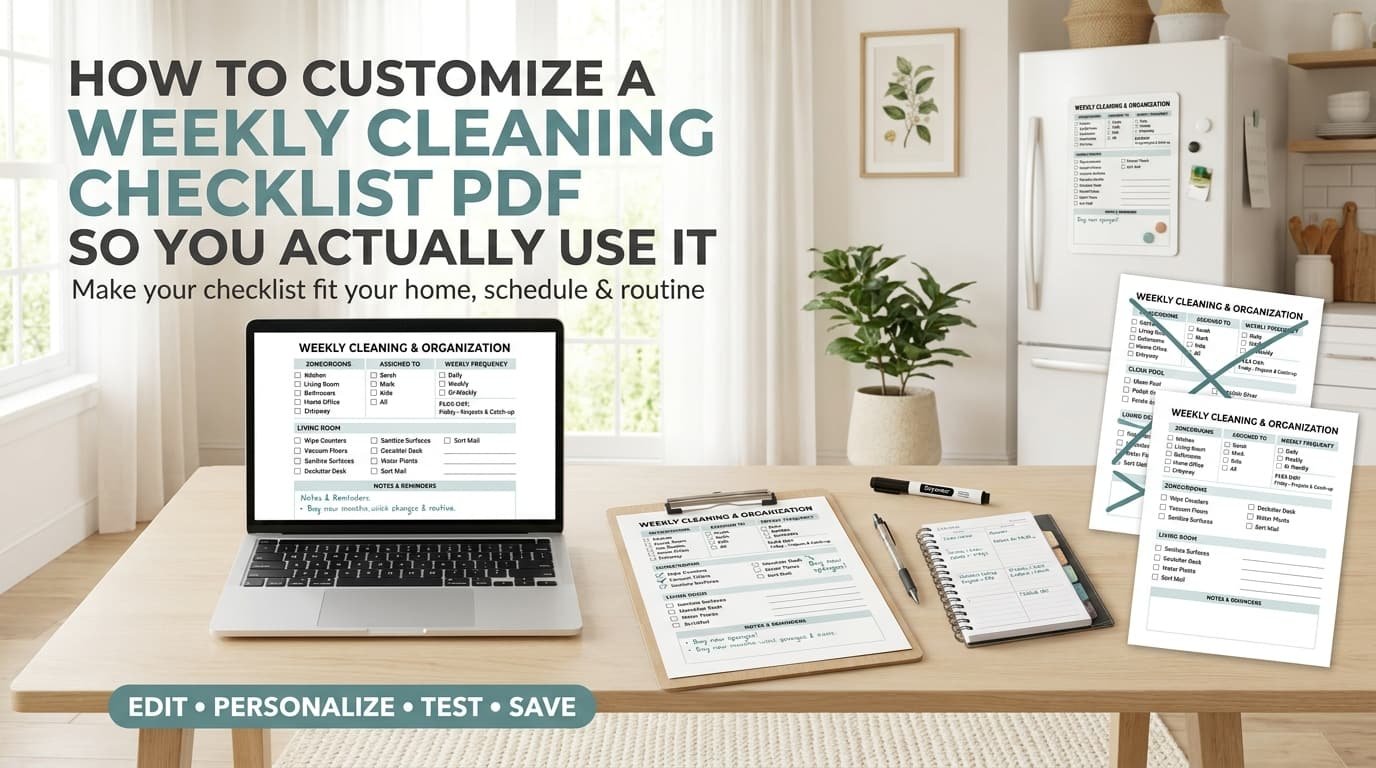
A generic weekly cleaning checklist PDF looks great the day you download it and gets ignored by week two, usually because it was built for a house that isn’t yours. Rooms you don’t have, a frequency that doesn’t match your schedule, task names that don’t sound like anything you’d actually say out loud.
Customizing it fixes that, and it takes less effort than starting from scratch. Most templates are built on a flexible structure underneath, which means the fix isn’t finding a better template, it’s adjusting the one you already have until it actually fits your home and your rhythm.
This list walks through the specific changes worth making, from renaming tasks to adjusting layout and frequency, so the checklist stops feeling like someone else’s system and starts feeling like yours. By the end, you’ll have a version you’ll actually keep using past the first week.
1. Start With the Version That Matches Your Actual Living Situation
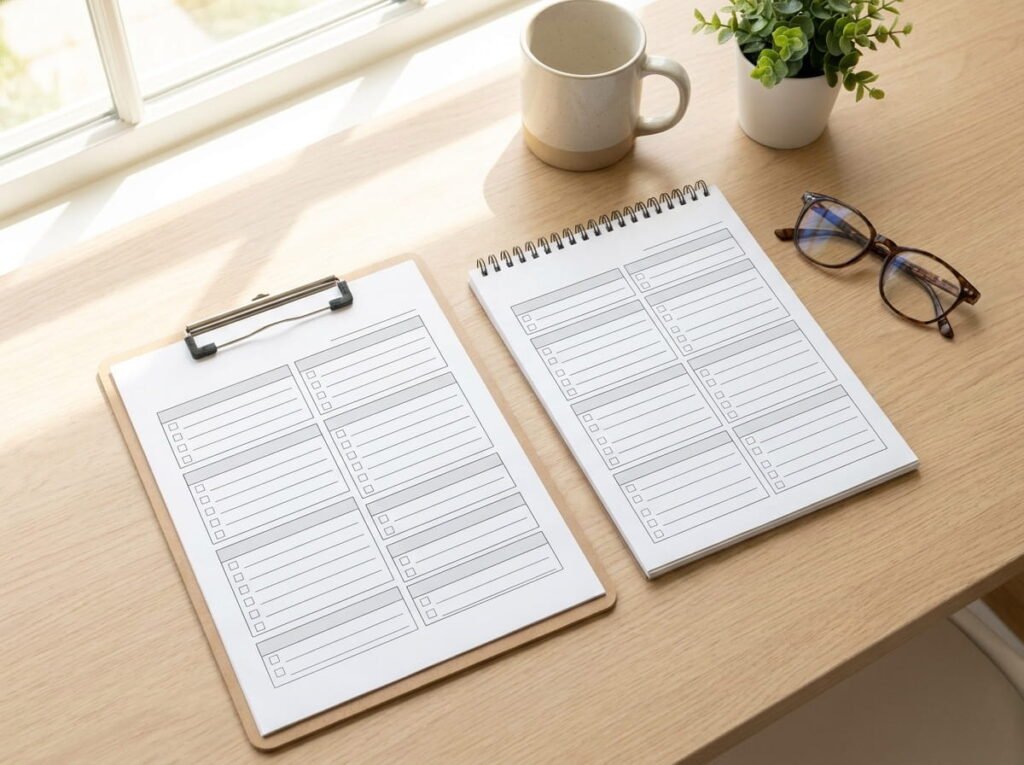
An apartment template and a house template aren’t interchangeable, even if they look similar at first glance. One assumes a yard and multiple floors, the other assumes shared walls and less outdoor space.
Pick the template built for your actual living situation first.
Adjust from there instead of forcing an ill fitting version to work.
Grabbing whatever template shows up first in a search.
Trying to delete your way down from a house template to fit an apartment.
2. Choose a Free PDF Editor Before You Touch the File
Not every PDF viewer lets you type directly into a template, and figuring that out after you’ve already picked a checklist wastes time you don’t need to lose.
| Basic Viewer | Editable PDF Tool |
|---|---|
| Opens and displays the file only. | Lets you type, resize, and rearrange text boxes. |
| No way to save your changes. | Saves a fully customized version you can reuse. |
3. Rename Tasks to Match How You Actually Talk About Them
A generic label like “clean common area” doesn’t mean much if you actually think of that space as the living room, or the spot by the stairs where everyone dumps their shoes.
“Clean common area” that doesn’t match how you actually describe your space.
“Tidy living room” written the way you’d actually say it out loud.
4. Delete Rooms or Zones That Don’t Exist in Your Home
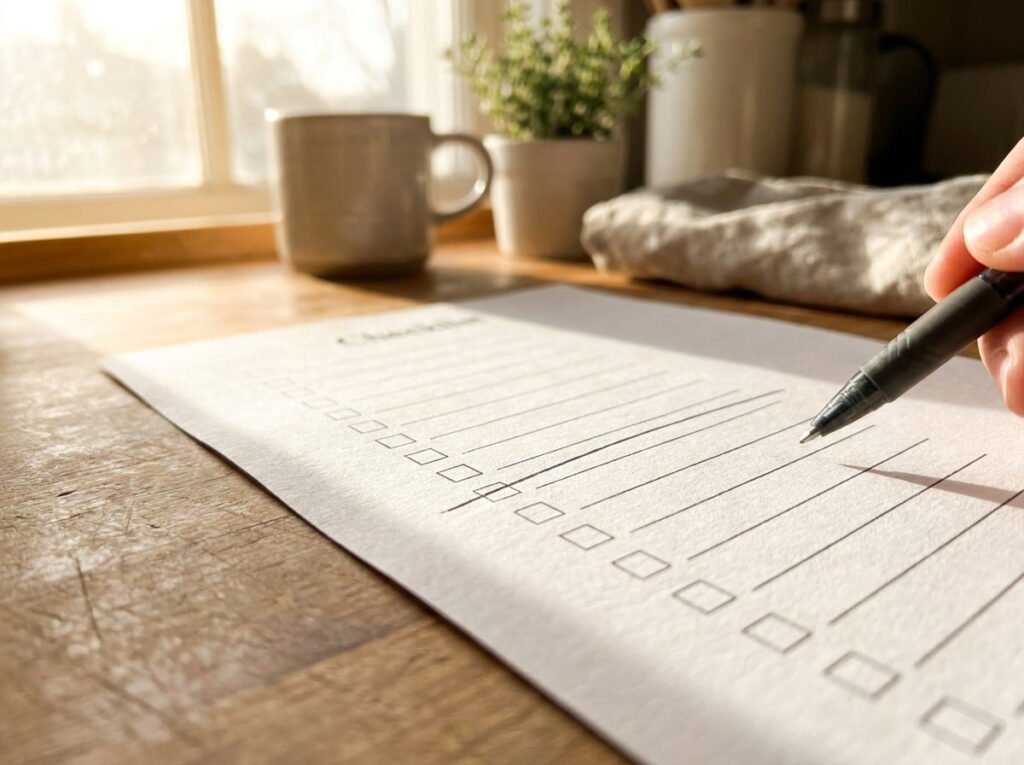
Fewer, accurate categories work better than a template that assumes a mudroom, a formal dining room, or a basement you don’t have.
💡 Quick Tip
Delete an entire row rather than leaving it blank, since an empty row still visually clutters the page.
5. Add a Zone the Template Doesn’t Already Include
Home offices, mudrooms, and reading nooks get left off a lot of standard templates, even though they’re spaces plenty of people actually need to track.
6. Adjust the Frequency Column to Match Your Real Rhythm
Weekly doesn’t fit every household evenly, and a task that gets forced into a schedule that doesn’t match reality is usually the first one to get skipped.
- Look at the current frequency for each task and be honest about whether it fits
- Move anything that’s actually biweekly or monthly out of the weekly column
- Leave true weekly tasks where they are so the list stays accurate
Look at the current frequency for each task and be honest about whether it fits.
Move anything that’s actually biweekly or monthly out of the weekly column.
Leave true weekly tasks where they are so the list stays accurate.
7. Assign Tasks to Specific Household Members Directly on the PDF
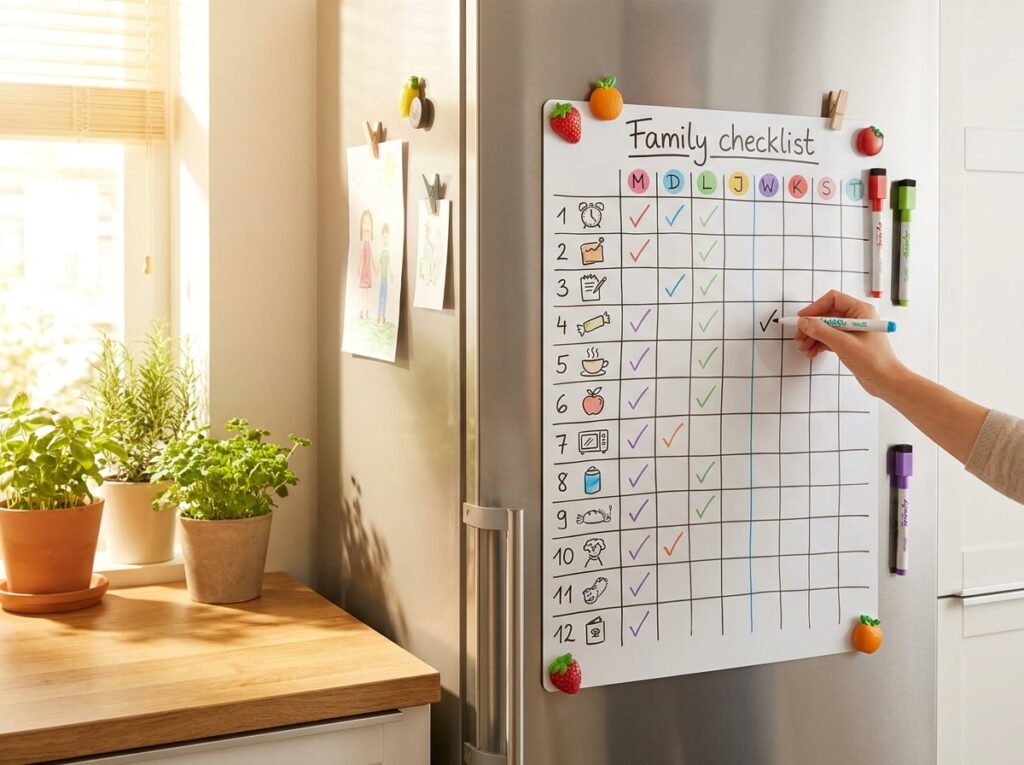
A generic list with no names attached tends to become one person’s silent responsibility, since nobody actually knows what’s theirs unless it’s written down clearly.
8. Change the Checkbox Style to Whatever Keeps You Motivated
This sounds like a small detail, and it’s also one of the reasons people actually finish checklists instead of abandoning them halfway through.
Options worth trying
9. Resize the Layout to Fit How You’ll Actually Use It
A full page checklist works fine taped to the fridge, but it’s the wrong size entirely if you’d rather fold it into a bag or keep it in a binder.
A full page checklist that’s awkward to carry or fold anywhere.
A resized version that actually fits how and where you’ll use it.
10. Adjust the Color Scheme to Match Your Planner or Decor
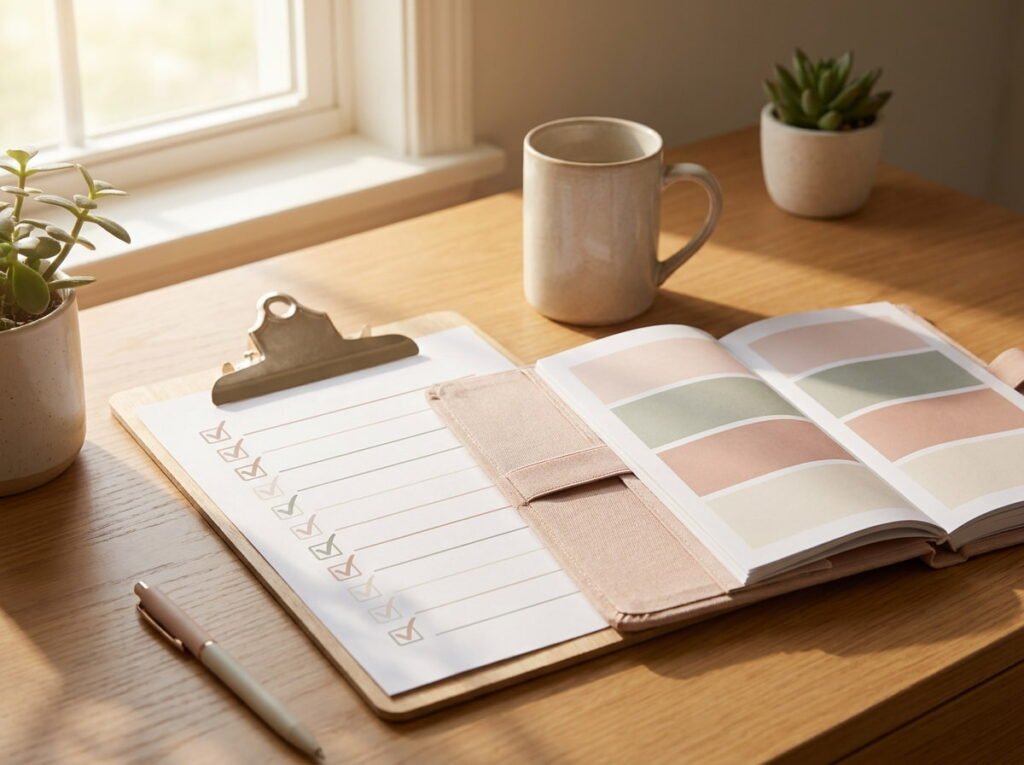
A personal touch like this seems purely cosmetic, but it’s also one of the small reasons people are more likely to keep using something they actually enjoy looking at.
📌 Good To Know
Matching your checklist to a planner or binder you already use makes it feel like one system instead of a separate task.
11. Add a Notes Section for One Off Tasks That Don’t Fit the Regular List
A repair that needs attention or a one time deep clean doesn’t belong crammed into your regular rotation, and most templates leave out any space for exactly that kind of task.
A blank notes section keeps one off tasks from cluttering your regular weekly rows.
12. Build In a Flex Day or Catch Up Row
A checklist with zero room for a missed task starts feeling like a failure the first time real life gets in the way, and that’s usually when people abandon the whole system.
- Add a row labeled flex day or catch up at the bottom of the page
- Leave it open ended rather than assigning it a specific task
- Use it for whatever slipped earlier in the week
Add a row labeled flex day or catch up at the bottom of the page.
Leave it open ended rather than assigning it a specific task.
Use it for whatever slipped earlier in the week.
13. Print a Few Versions Before Committing to Laminating One
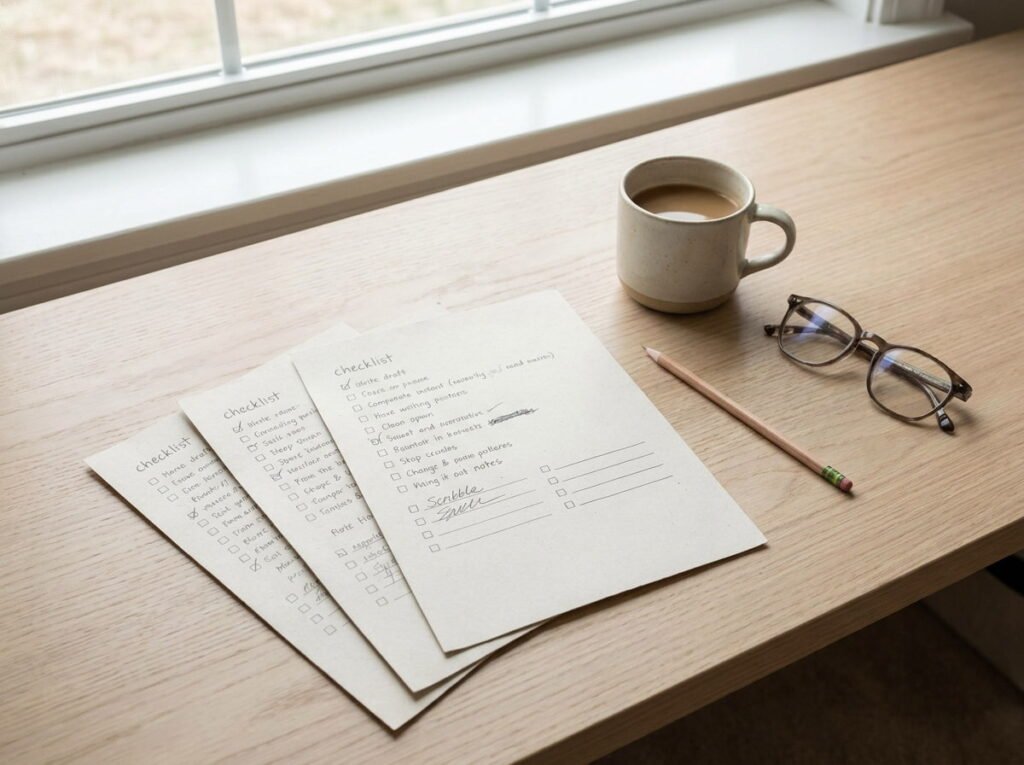
Testing the layout with a week or two of real use catches problems that never show up just looking at the file on a screen, like a font too small to read from across the kitchen.
Print a plain paper version and use it for a week first.
Note what feels off before making anything permanent.
Laminating the very first draft you make.
Assuming the layout works just because it looks fine on screen.
14. Save Separate Versions for Different Weeks or Seasons
A light version for busy weeks and a deep clean version for when you have more time both come from the same base file, just adjusted for what that particular week actually needs.
Versions worth saving
15. Adjust Font Size for Wherever the Checklist Will Live
Small text works fine in a binder you’re holding close, but the same size becomes unreadable taped to a fridge you’re glancing at from across the kitchen.
16. Add Icons or Simple Symbols Next to Each Task

A tiny icon next to a task name gives you a visual shortcut when you’re skimming quickly, and it helps younger family members recognize tasks before they’re confident readers.
⚠️ Watch Out
Keep icons simple and consistent. Too many different styles on one page ends up looking cluttered instead of helpful.
17. Convert Your Finished PDF Into a Laminated or Reusable Version
Once the layout, wording, and details actually feel right, making it durable means you’re not reprinting a fresh copy every single week just to check off boxes again.
A fresh paper printout every week just to check off the same tasks.
One laminated sheet you wipe clean and reuse week after week.
18. Save Your Customized Template So Future Updates Take Minutes, Not a Full Rebuild
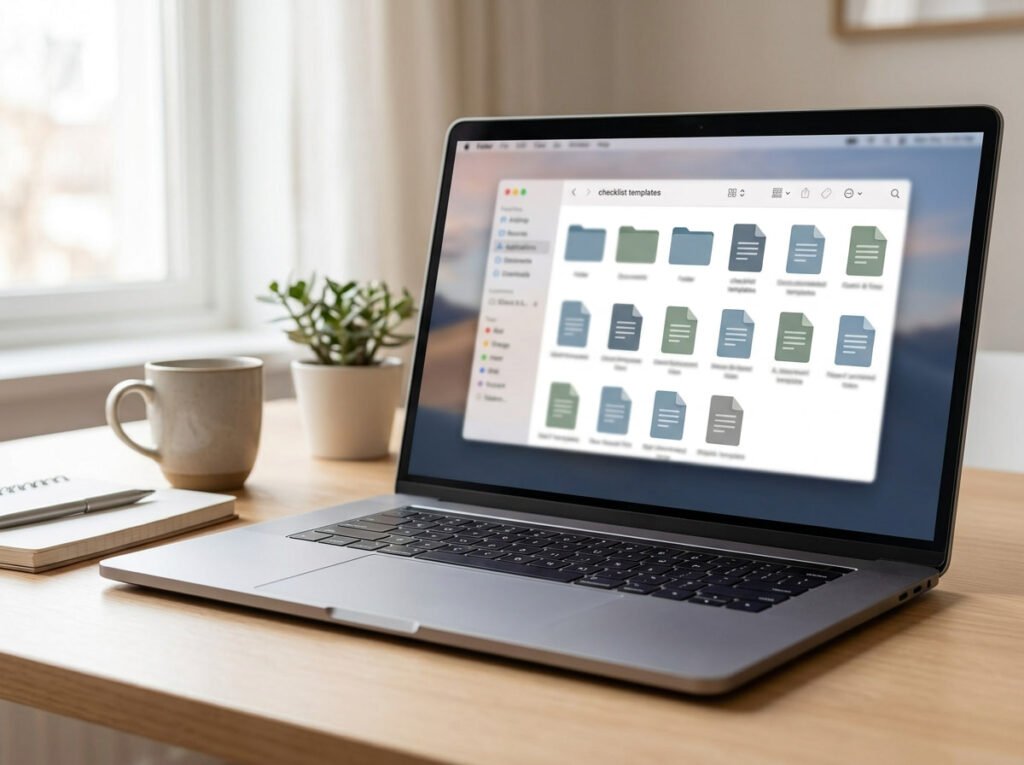
Life changes, and your checklist should be able to change with it without you starting completely over every time something shifts.
Conclusion
A weekly cleaning checklist PDF only works as well as it fits the person actually using it, and every adjustment on this list moves it closer to something that matches your home instead of a stranger’s idea of one. None of these changes take long once you know what to look for.
Once you’ve made a few of these edits, you’ll have a version that feels like your own system, not a template you’re forcing yourself to fit into. Save the editable file so future changes take minutes, not another full rebuild.
Save this list for the next time your current checklist feels a little off, and use it to fix exactly what’s not working.